
Process manager
During the various stages of the rule engine it is important to keep track about the status of individual file bundles. In the normal course of operation alert files are composed according to certain features like time intervals e.g. months or divisional characteristics like sales systems.
The Process Manager provides a customizing feature that allows to define a processing attribute that can be attached to file bundles. For instance, you may define a process that is attached to the September file bundle. Now once the file bundle has been processed by both the Rule Engine and the responsible people, the status changes. This is to reflect its current processing state.
 Note: proper role authorization is required to view, edit or change any data within this module. In case you do not see the described module please approach your system administrator or authorization contact.
How to customize processes in the Process Manager
 You access the Process Manager by clicking on the icon on the left navigation pane. The right panel is subdivided into three sections: the Process Edit section, the Process Table section, and the File table section.
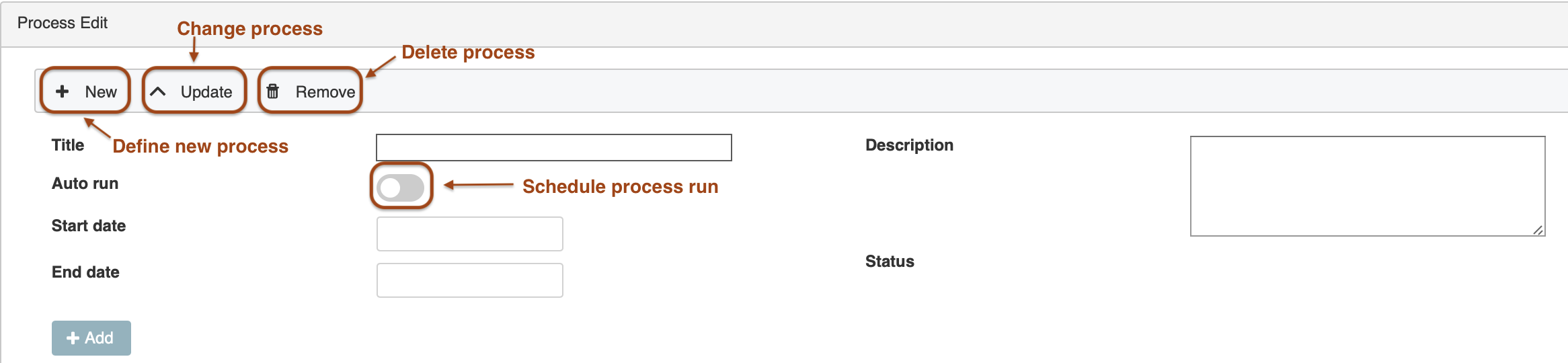
New Process
The top section Process Edit allows you to define new processes, change existing ones or delete them. As illustrated in the graphic you create a new section by clicking on + New. Populate the Title field, Start and End date and provide a brief description. If required you may toggle Auto run button in order to schedule the process to run during a time interval. Finally save the process by pressing + Add.
The Status value of the process in the Process Edit section turns to New.

Change a Process
In order to edit the settings of a process click on a process in the Process Table section to highlight it. Then click on ^ Update button in the Process Edit section to activate the edit mode. You may now make any changes. To save your changes by clicking the + Update button.
Delete a Process
To remove a Process proceed in the same way as when you would change a process. Instead, you hit the Remove button in the Process Edit section.
Map files to a Process
Now you want to start assigning files to a process. This enables you to track their status as they work their way through the various stages. Go ahead and click on a process in the Process Table section to highlight it. Then secondary or right click on it. This calls up the context menu map Files as shown in the illustration above.
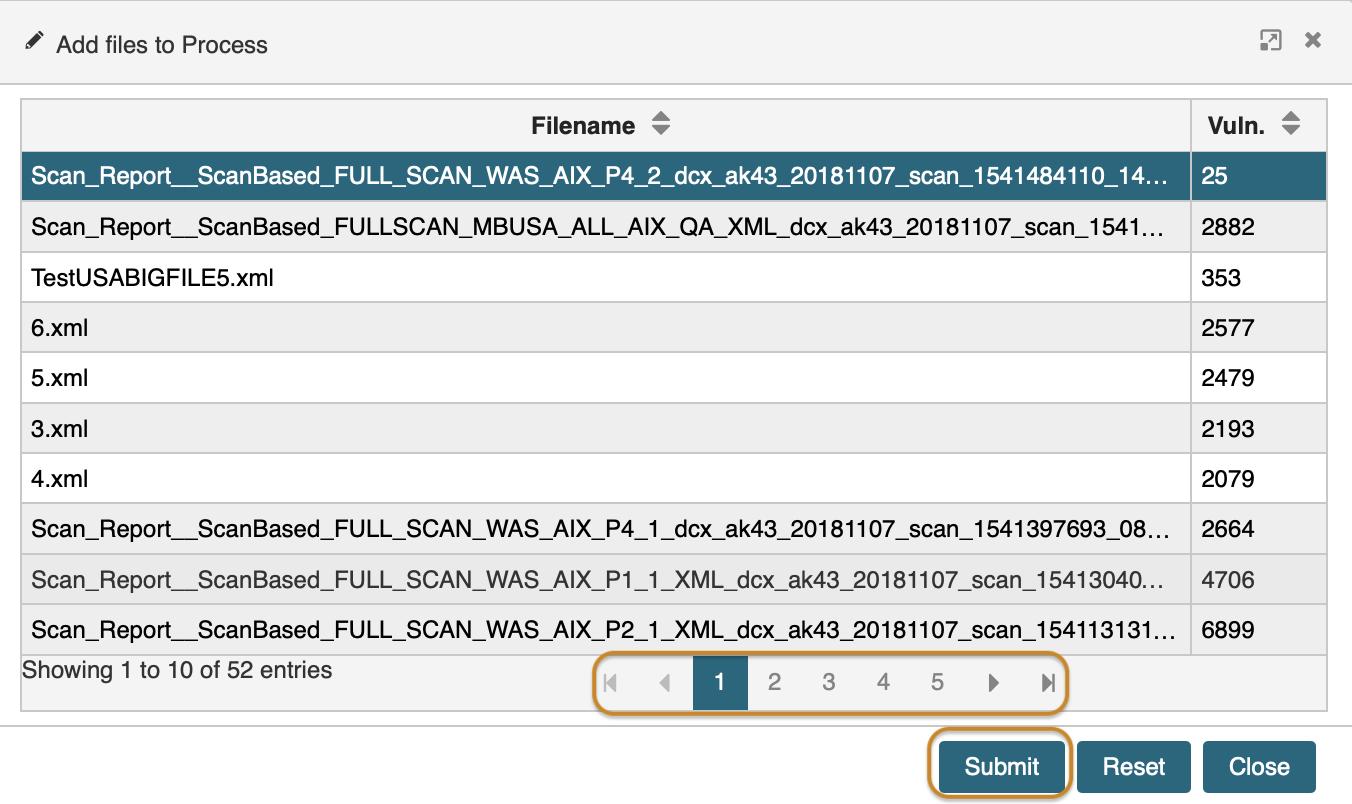
Further clicking on map Files brings up a pop-up window from the File Manager that list all available XML files. You may now select one or more files. The screen provides for browsing all files by clicking on the number tabs at the bottom. When done hit the Submit button. This assigns the files to the process. As a result the chosen files are listed in the File table section at the bottom of the screen.
 Please note: mapping files to a process is only available if the Process has one of the following statuses:
- new
- approved
How to trigger the status Approved
When a Process is first created, it is declared with the initial status New. I a next step you map appropriate XML files to it, which you plan to send through the Rule Engine and finally to the responsible recipients within the organization. But how do we make sure that the files are categorized correctly according to the company policy and the right people actually receive them?
We trigger the status Approved in the module Rule Verify by hitting the button Apply and approve. On how to use this module please check there for details.
How to trigger the status Running
Provided that the Process reached the approved stage, you may put it in the running phase. To do so, secondary or right-click on the package in the Process Table section and call up the context menu.

You are presented with the options start, map Files, and add to running Process. Click start. The status changes to running.
How to trigger the status Closed or Canceled
Prerequisite is the Process stage is running. To do so, secondary or right-click on the package in the Process Table section and call up the context menu.

You are presented with the options close and cancel.
In what status is a process still changeable
Processes can be changed or deleted as long as they reside in stage new or approved. Processes in any later stage may neither be changed nor deleted.
Status |
Process can be |
|
edited |
removed |
|
new |
|
|
approved |
|
|
running |
|
|
closed |
|
|
injected |
|
|
canceled |
|
|
updated on: 5/9/2019 ⏐updated by: Wolfgang Stoettner ⏐ v1.0.1