
File manager
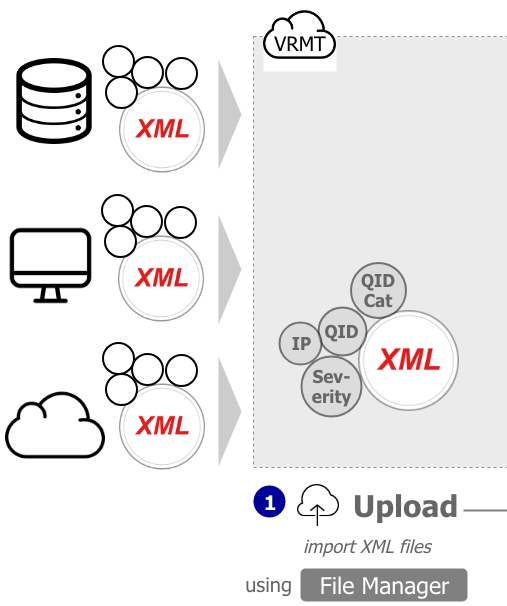 The File Manager is the first part of VRMT Rule Engine. At its core it holds all source files that contain the detailed information concerning individual vulnerabilities. In essence, these files comprise detailed data about the affected technical entity, for instance, an IP address, severity of the weakness, operating system, etc.
The graphic depicts the exemplarily upload of Qualys type XML source files. These files may be loaded from any destination available such as connected file server, desktop computers or cloud storage devices.
In most cases, an appropriate vulnerability scanner delivers alert files that are already equipped with certain attributes. These attributes are linked to the XML file and give the alert a specific meaning on how to interpret them. Such attributes might be the location that was inflicted by a weakness e.g. IP address. Likewise, the scanner could provide a degree of severity on how it asses the potential adverse impact of it. Depending on the scanning engine provider you might also encounter categorizations or IDs that bundle the vulnerability into already known weakness groups. In our example above this is the QID and QID Category that is delivered by Qualys.
VRMT relies on XML files as a source of vulnerability information. Though any type of XML file will do, many companies have already deployed Qualys as their vulnerability scanning engine which produces specifically structured XML types. Due to this fact we will pledge a bit more attention to Qualys XML source files throughout this manual.
 Note: proper role authorization is required to view, edit or change any data within this module. In case you do not see the described module please approach your system administrator or authorization contact.
How to use the File Manager

To access the File Manager click on the respective button in the left navigation bar. The File Manager represents the interface used to load XML files to the VRMT database and, thus, makes it known to the system. Its use is very straightforward.
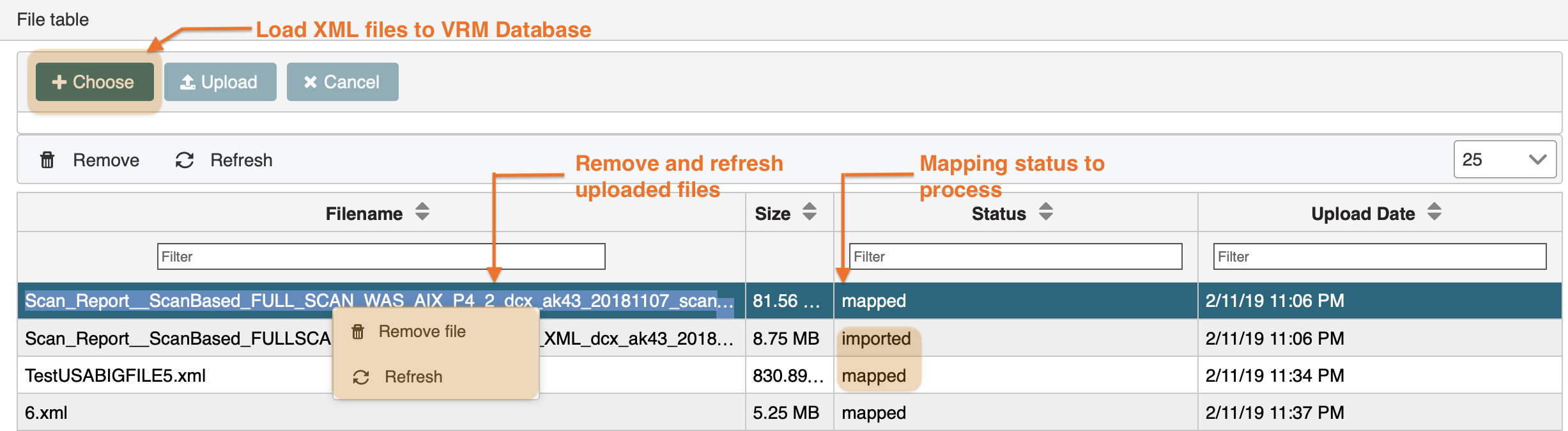
The following graphic illustrates the principal functions of the File Manager.
File Import
For files to be managed and operated, VRMT currently requires manual upload. To do so select the Choose button on the left header bar. You are prompted with a selection window that allows you to choose a file from your desktop or connected server. During upload the XML file is verified whether it adheres to the formatting standards stipulated by VRMT. In cases where format requirements are not met the file upload terminates and gives an error message. Upon successful import the file is given the initial status "imported".
File Removal
In addition, files can be removed from VRMT database by highlighting a row and selecting the Remove file prompt in the context menu. Before removing files please take note of the file status: files mapped to a process (Process Manager) can not be deleted. Hence they need to be unmapped before you can effectively delete them.
updated on: 5/9/2019 ⏐updated by: Wolfgang Stoettner ⏐ v1.0.1