
Use case
The power of the Rule Manager is best explained by running through a quick example. Consider the following use case.
We plan to configure a simple rule: a system that communicates within the network using the IP address 53.30.226.124 is principally a production system and is therefore considered utmost important to the company. Any network weakness that compromises its security in any respect is regarded a severe impact to the company's security policy. An alert requires immediate attention by the responsible staff.
There is an exception to that rule: if the system uses ports 80 through 83 it is identified as a development system. In this case the security policy states that development and integration systems generally have a minor impact on the security soundness and therefore require less imminent attention from the respective staff.
We could summarize this simple requirement in pseudo code like this:
RULE 1: IF IP = 53.30.226.124 THEN ENVIRONMENT = PROD
RULE 2: IF 80 =< PORT =< 83 THEN ENVIRONMENT = DEV
RULE 3: IF ENVIRONMENT = PROD THEN IMPACT = severe
RULE 4: IF ENVIRONMENT = DEV OR ENVIRONMENT = INT THEN IMPACT = minor
Next we want to translate aforementioned requirements as rule sets in the Rule Manager.
RULE 1
To define a new rule click on + NEW. In the following pop-up window you set the definition for RULE 1, the definition of the production environment (PROD) based on the IP address 53.30.226.124.
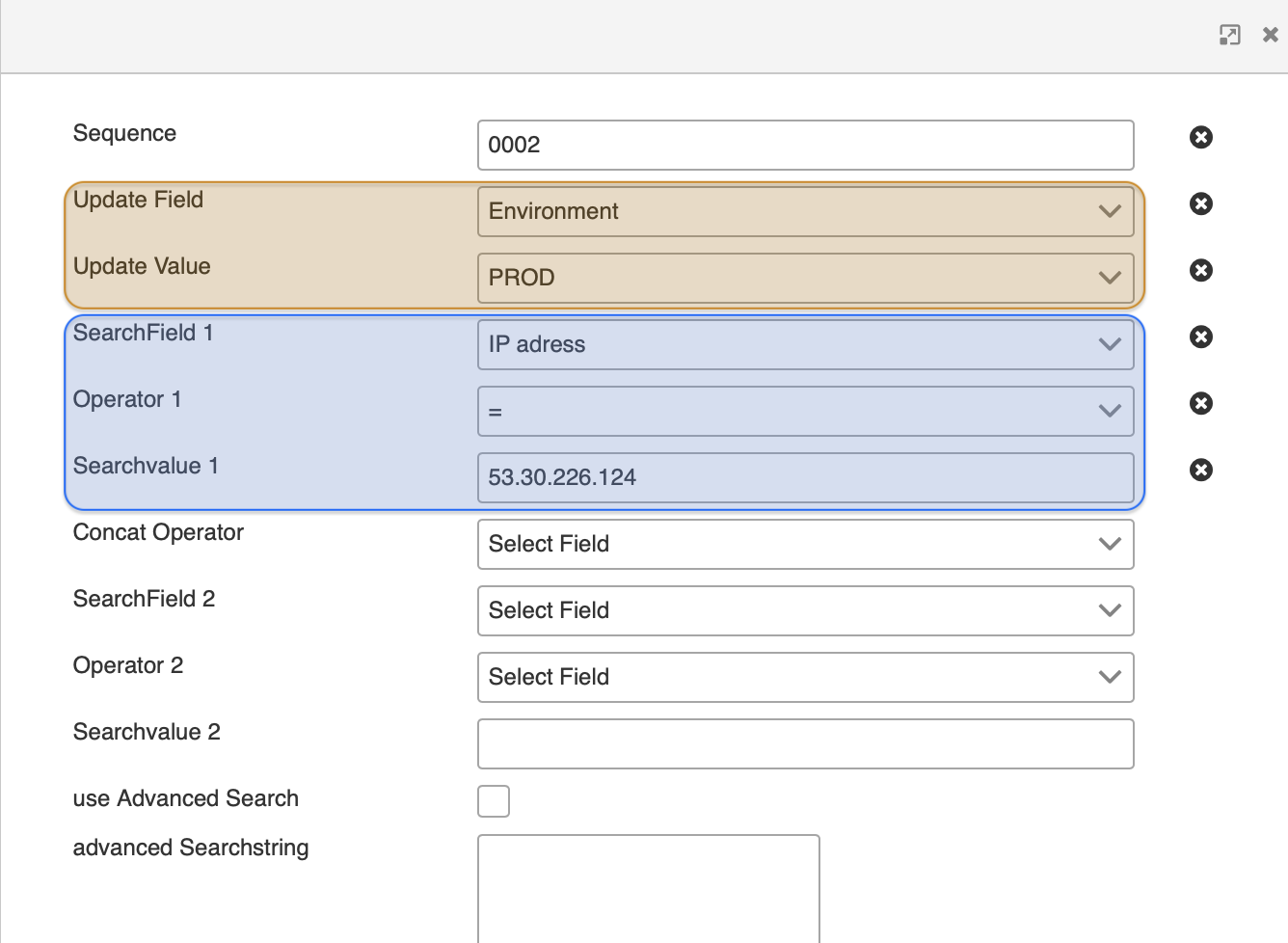
To start out, set the Sequence to 0002 to determine that this rule runs first.
Next we want to configure the result value. To do so, click the drop-down box of the Update Field and search for Environment and select it. Similarly, click on the drop-down box of Update Value and select the value PROD.
Info on drop-down boxes: all drop-down boxes provide a search field at the top to facilitate looking up values by directly entering text strings. This saves a lot of time since otherwise you would have scroll manually through a long list of values.
Now we configure the component of the logical expression. Select the drop-down box of attribute SearchField 1. You receive the list of all configured attributes. Select IP address here. Next click in the text field of Searchvalue 1 and enter the value 53.30.226.124.
 Please make sure not the set any preceding or trailing spaces.
Finally set the Operator. Select "=" from the drop-down box Operator 1. Confirm your rule and press the update button at the bottom right corner of the pop-up window.
RULE 2
To define the next rule click on + NEW. In the following pop-up window you set the definition for RULE 2, an exception that stipulates to set Environment to DEV if the Port interval ranges between 80 and 83.
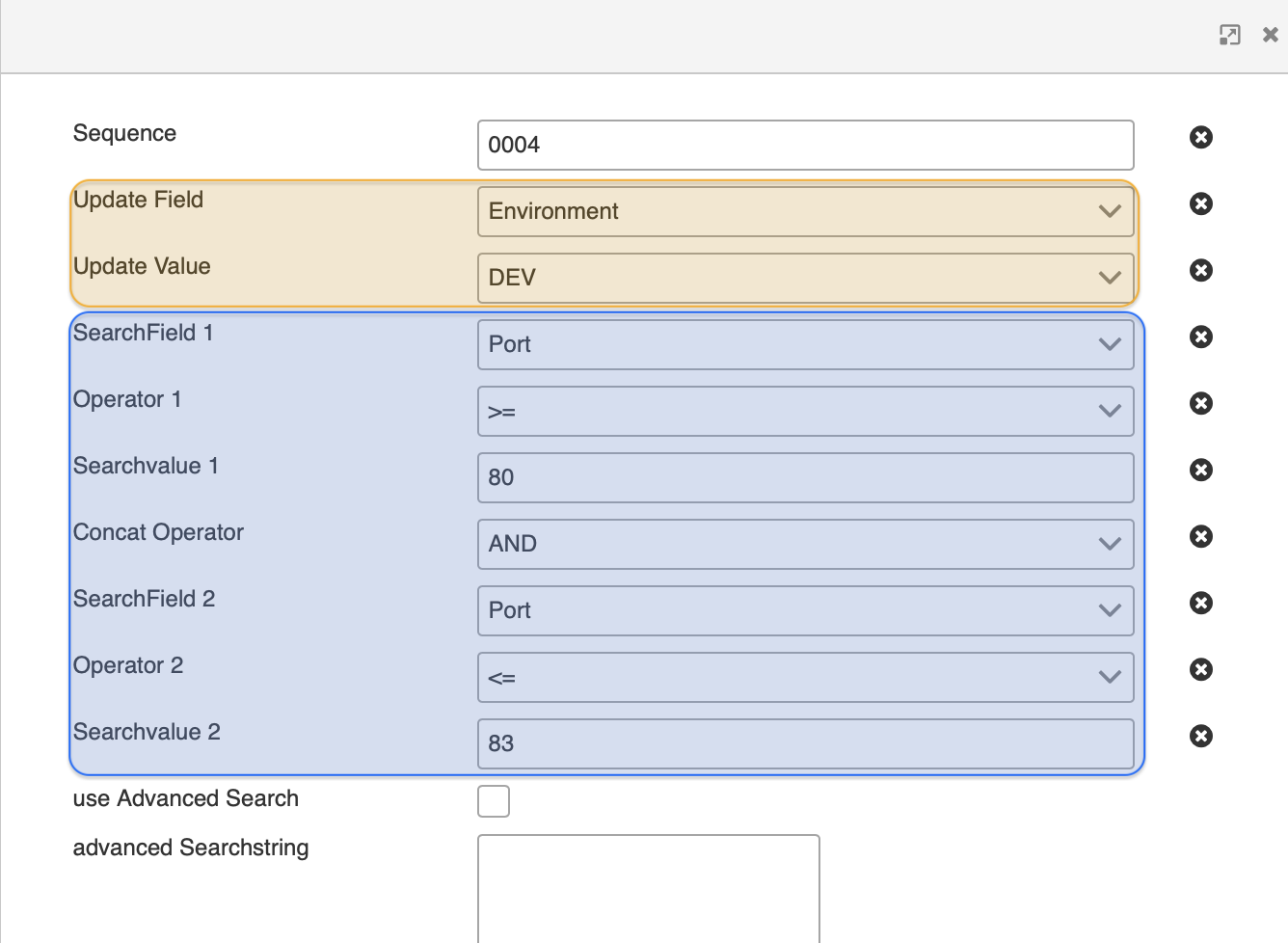
To start out, set the Sequence to 0004 to determine that this rule runs second.
Next we want to configure the result value. To do so, click the drop-down box of the Update Field and search for Environment and select it. Similarly, click on the drop-down box of Update Value and select the value DEV.
In the following we define an interval for Ports ranging from 80 to 83.
We click the drop-down box of attribute SearchField 1. You again receive the list of all configured attributes. Select Port here. For the Operator 1 we select the value ">=". Go ahead and click in the text field of Search Value 1 and enter 80. Set the Concat Operator to AND. Similarly to above, select Port for SearchField 2. The Operator 2 is set to "<=". The Search Value 2 is set to 83.
To confirm your rule press the button update at the bottom right corner.
RULE 3
To define the next rule click on + NEW. In the following pop-up window you set the definition for RULE 3 that defines a severe impact if the system type is PROD.
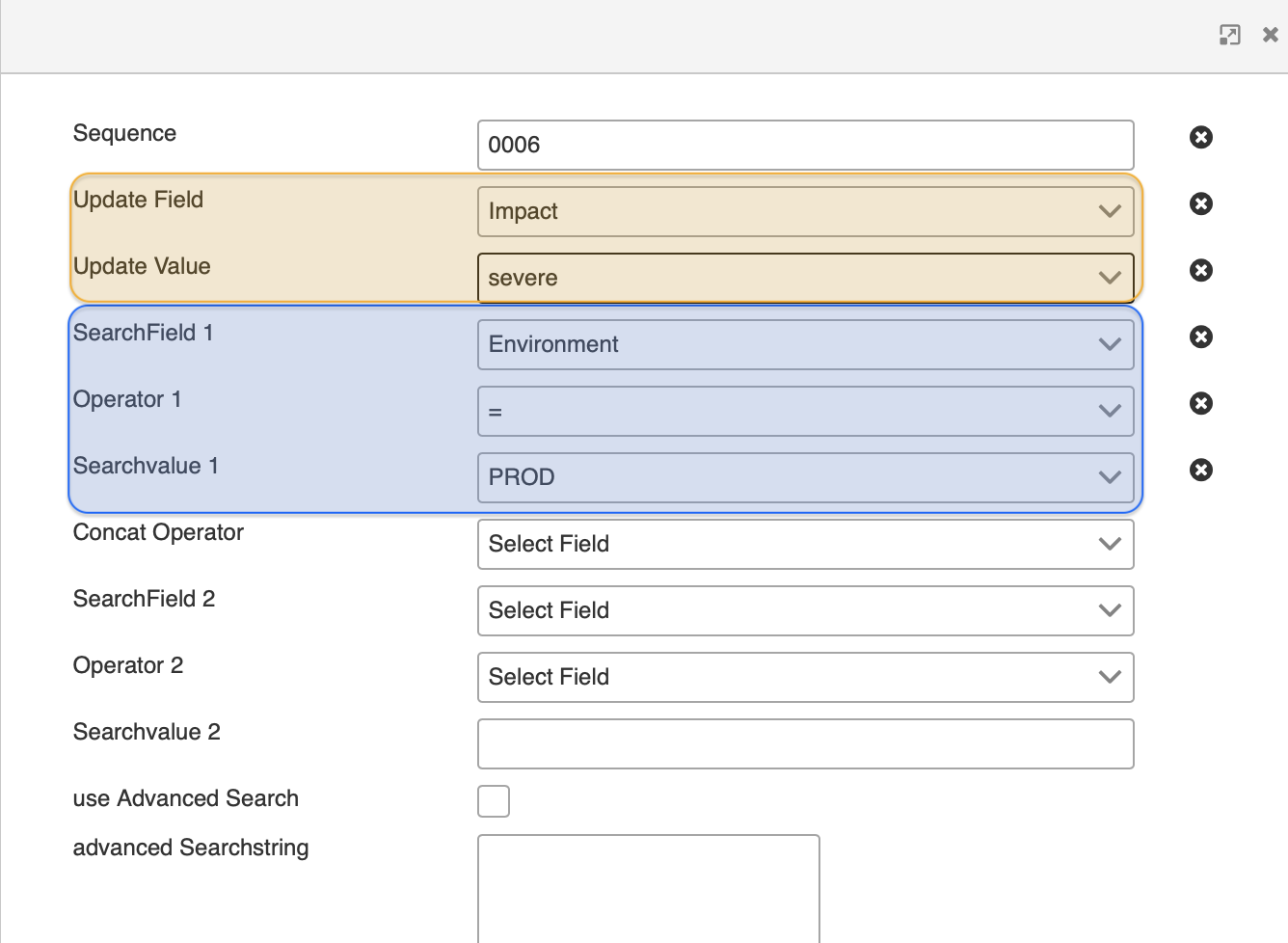
To start out, set the Sequence to 0006 to determine that this rule runs third.
Next we want to configure the result value. To do so, click the drop-down box of the Update Field and search for Impact and select it. Similarly, click on the drop-down box of Update Value and select the value severe.
In the following we define that for all PROD environments the impact is set to severe.
We click the drop-down box of attribute SearchField 1. Select Environment here. For the Operator 1 we select the value "=". Go ahead and click on Search Value 1 and select PROD.
To confirm your rule press the button update at the bottom right corner.
RULE 4
To define the next rule click on + NEW. In the following pop-up window you set the definition for RULE 4 that defines a minor impact if the system type either DEV or INT.
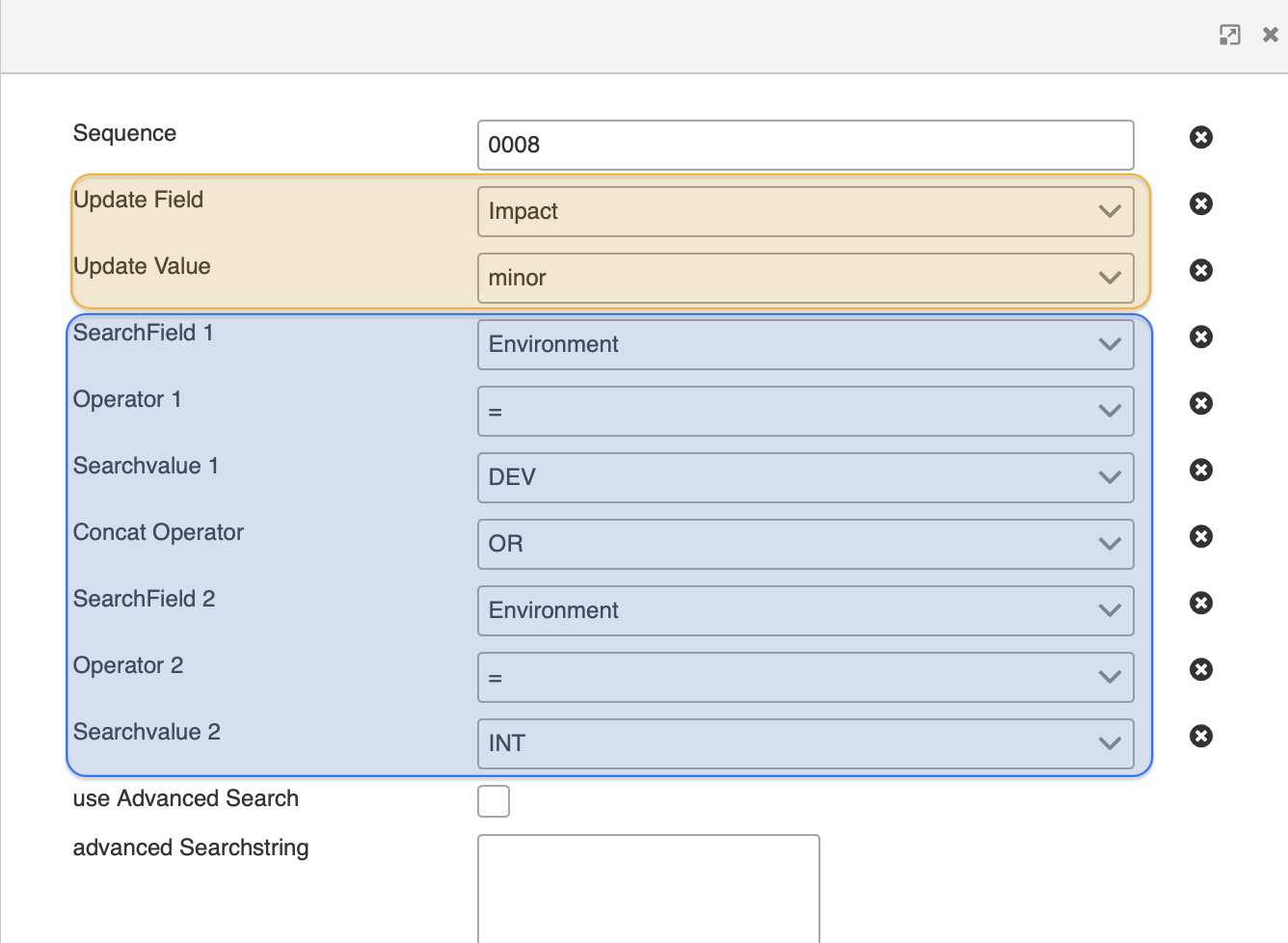
To start out, set the Sequence to 0008 to determine that this rule runs on fourth place.
Next we want to configure the result value. To do so, click the drop-down box of the Update Field and search for Impact and select it. Similarly, click on the drop-down box of Update Value and select the value severe.
In the following we define that for all PROD environments the impact is set to severe.
We click the drop-down box of attribute SearchField 1. Select Environment here. For the Operator 1 we select the value "=". Go ahead and click on Search Value 1 and select PROD.
To confirm your rule press the button update at the bottom right corner.
1 For a brief explanation of Boolean operators refer to Wikipedia or Columbia University.
updated on: 5/9/2019 ⏐updated by: Wolfgang Stoettner ⏐ v1.0.1