
Adding notes to vulnerabilities (commenting)
During the vulnerability management process new pieces of information may prop up that has an imminent impact on the processing, remediation and ultimately patch application. To this end, a note function has been introduced. New information may be added, for instance, that is directed at a responsible team, the Vulnerability (VR) Manager or Local Manager for further clarifications.
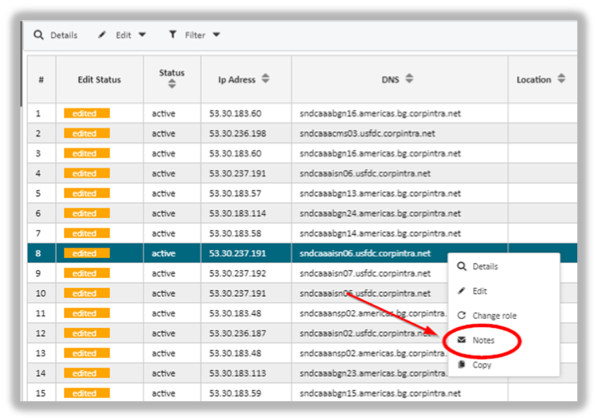
Adding a note is straightforward. In the vulnerabilities listing simply highlight a row, call up the context menu and select “Notes”.
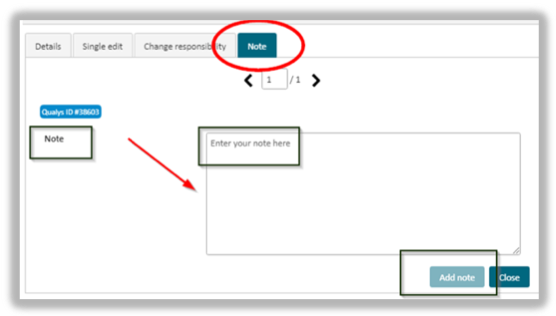
In the following pop-up window add your comments in text box and save it by hitting the “Add note” button. Any comments attached to vulnerabilities are accessible for later review or adjustment. What’s more is that additions like answers or suggestions of other people are visible to anyone who has access to the notes.
Opening Notes
To open the notes you have basically two options:
First, click on the envelope icon situated in the upper right corner of the listing page.

For the second option use the navigation panel on the left-hand side and click “Notes”.
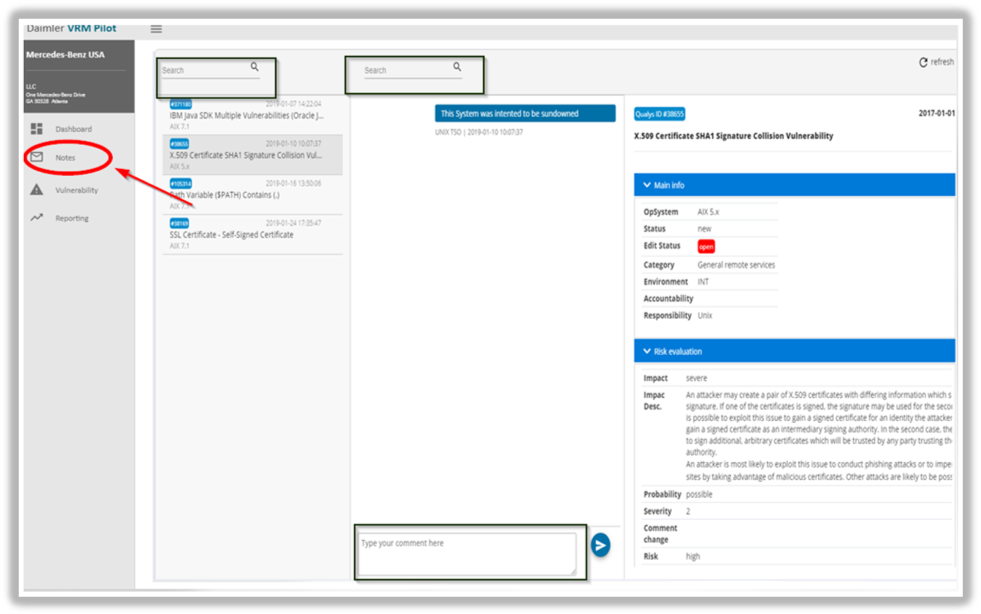
Both options lead to the same dialogue notes window. It gathers all comments for all vulnerabilities that have been maintained in the system. From here you can choose any comment of interest, view the content and make your changes if required. Apparently, you have access to additions and other changes made by other people. As a result, the information is always up-to-date.
The upside of the “Notes” window is the fact that you have one central place for all notes and comments. In case you need to make adaptions to a large number of notes like, for instance, adding patch information to all affected vulnerabilities, you can do so here without having to navigate back and forth between records.
updated on: 5/9/2019 ⏐updated by: Wolfgang Stoettner ⏐ v1.0.1